
How to Drop a Pin on Google Maps: Easy Guide for All Devices
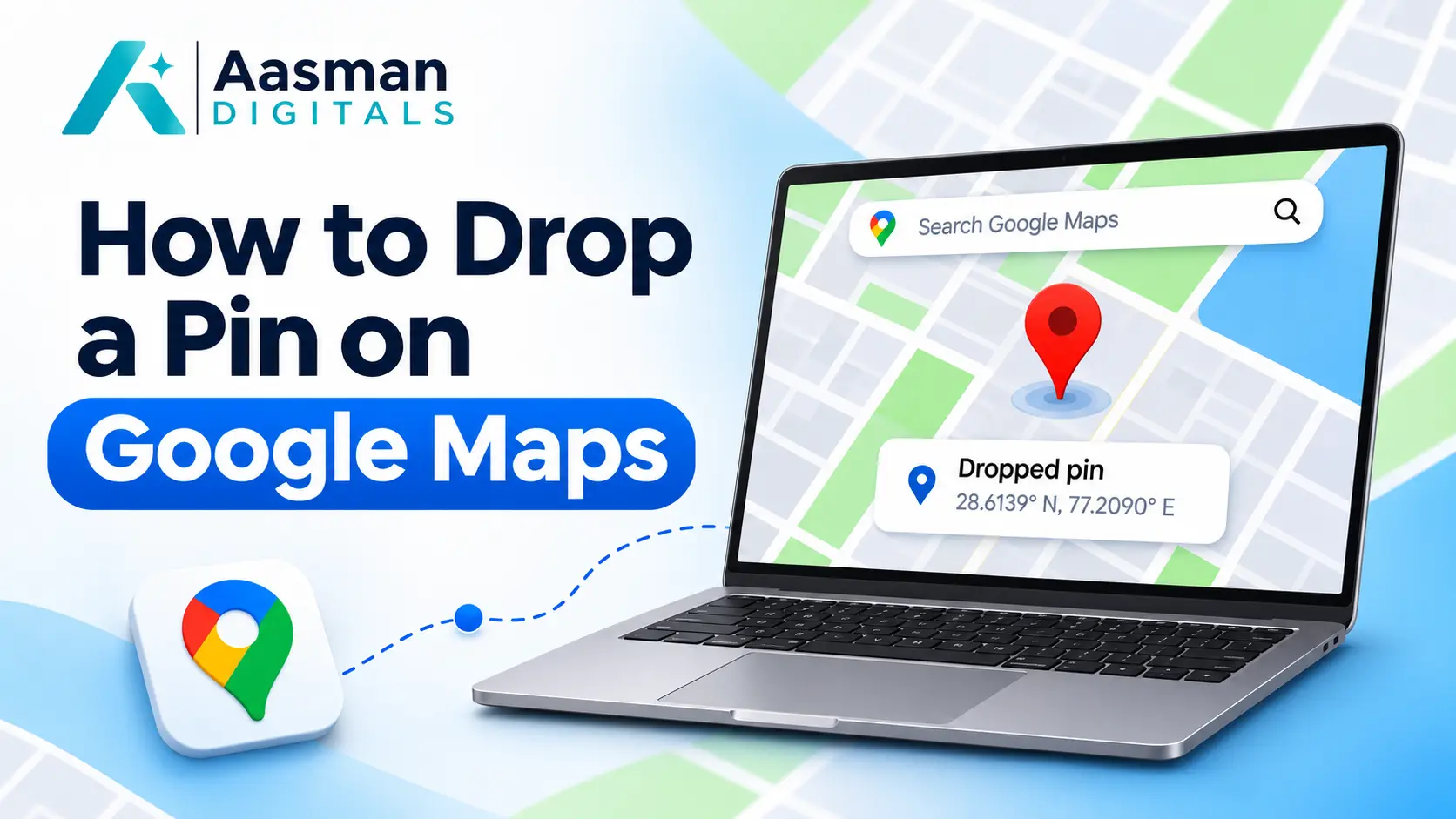
Have you ever tried to share a location that has no street address? It could be a parking spot, a meeting point, or a shop entrance. Google Maps lets you mark the exact place with a pin, making it easier for others to find.
Learning how to drop a pin on Google Maps takes only a few seconds. You can use this feature on Android, iPhone, or a computer. Once you place the pin, you can save the location, share it with someone, or get directions.
This guide explains each step and shows how businesses can make their locations easier for customers to find.
What Is a Dropped Pin on Google Maps?
A dropped pin is a marker that identifies a specific point on a map. It helps you find places that may not have a clear street address or business listing.
When you place a Google Maps location pin, the app identifies the selected spot. You can then open its details to view available location information or take further action.
People often use dropped pins to:
- Share meeting points with friends or family.
- Mark parking spaces or building entrances.
- Save places they want to visit later.
- Find directions to a specific location.
- Share locations without a formal street address.
A dropped pin is useful for personal trips, business visits, and deliveries. It also helps when a building has several entrances.
How to Drop a Pin on Google Maps
The process is simple on most devices. You only need to find the location and place a marker on the map.
Here is a quick overview of how to drop a pin on Google Maps:
- Open Google Maps on your device.
- Search for a location or move around the map.
- Zoom in to find the exact spot.
- Touch and hold the location on mobile, or click it on a computer.
- Open the location details to save, share, or get directions.
The steps are slightly different depending on the device you use.
How to Drop a Pin on Google Maps on Android
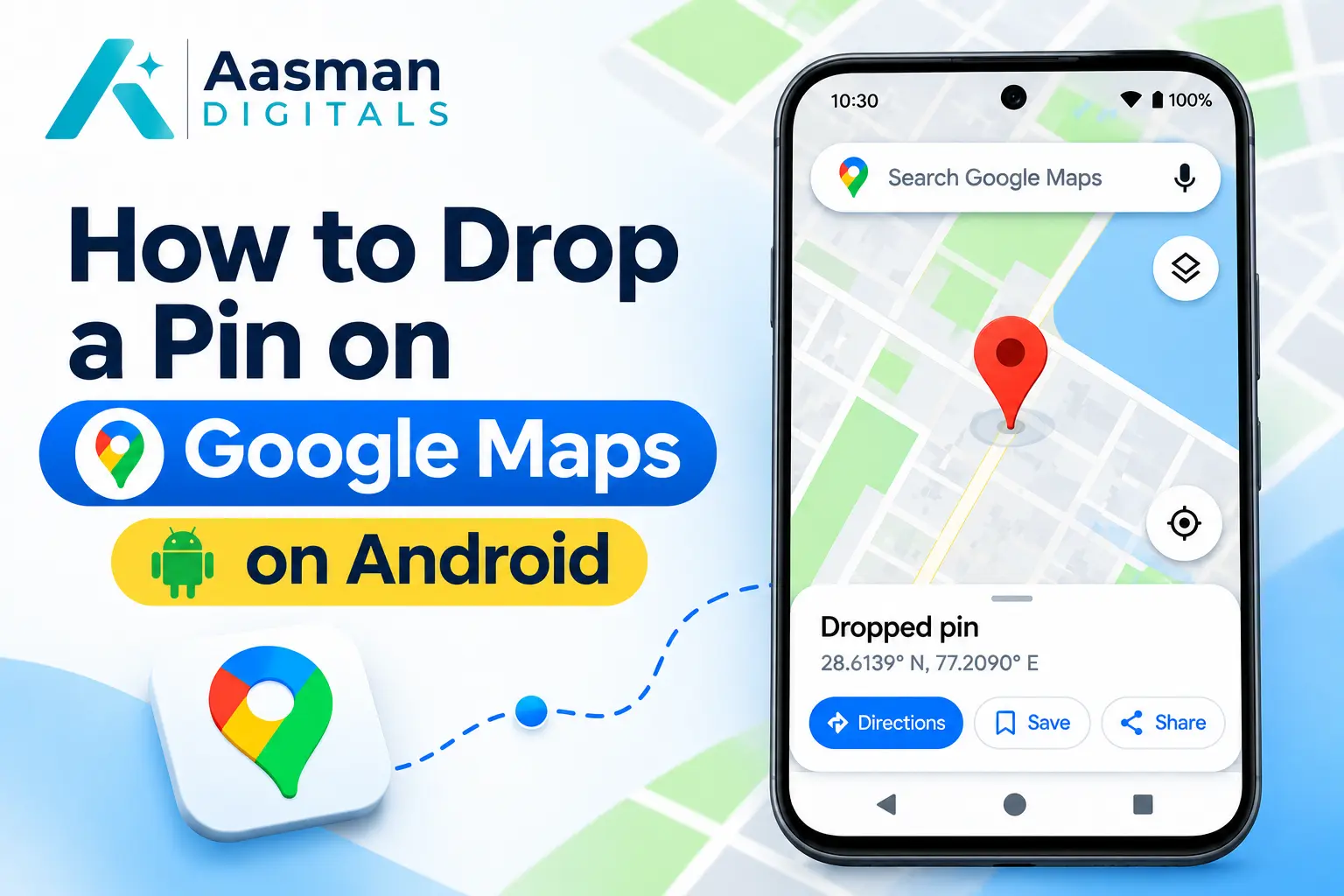
Android users can mark any suitable location using the Google Maps app. You do not need to know the full address before placing a pin.
Step 1: Open Google Maps
Open the Google Maps app on your Android phone. Make sure you have an internet connection so the map can load the area you need.
Step 2: Find the Location
Enter a place name or address in the search bar. You can also move around the map manually.
Zoom in until you can clearly see the location you want to mark. This helps you avoid placing the pin on the wrong building or road.
Step 3: Place Your Pin
Touch and hold an unlabeled area of the map. A red pin will appear at the selected point.
Google Maps will also display location details, which may include an address or GPS coordinates.
Step 4: Save or Share the Location
Open the location card to view the available options. You can save the pin, share it through another app, or request directions.
These steps show how to drop a pin on Google Maps without needing a listed business or street address.
How to Drop a Pin on Google Maps on iPhone
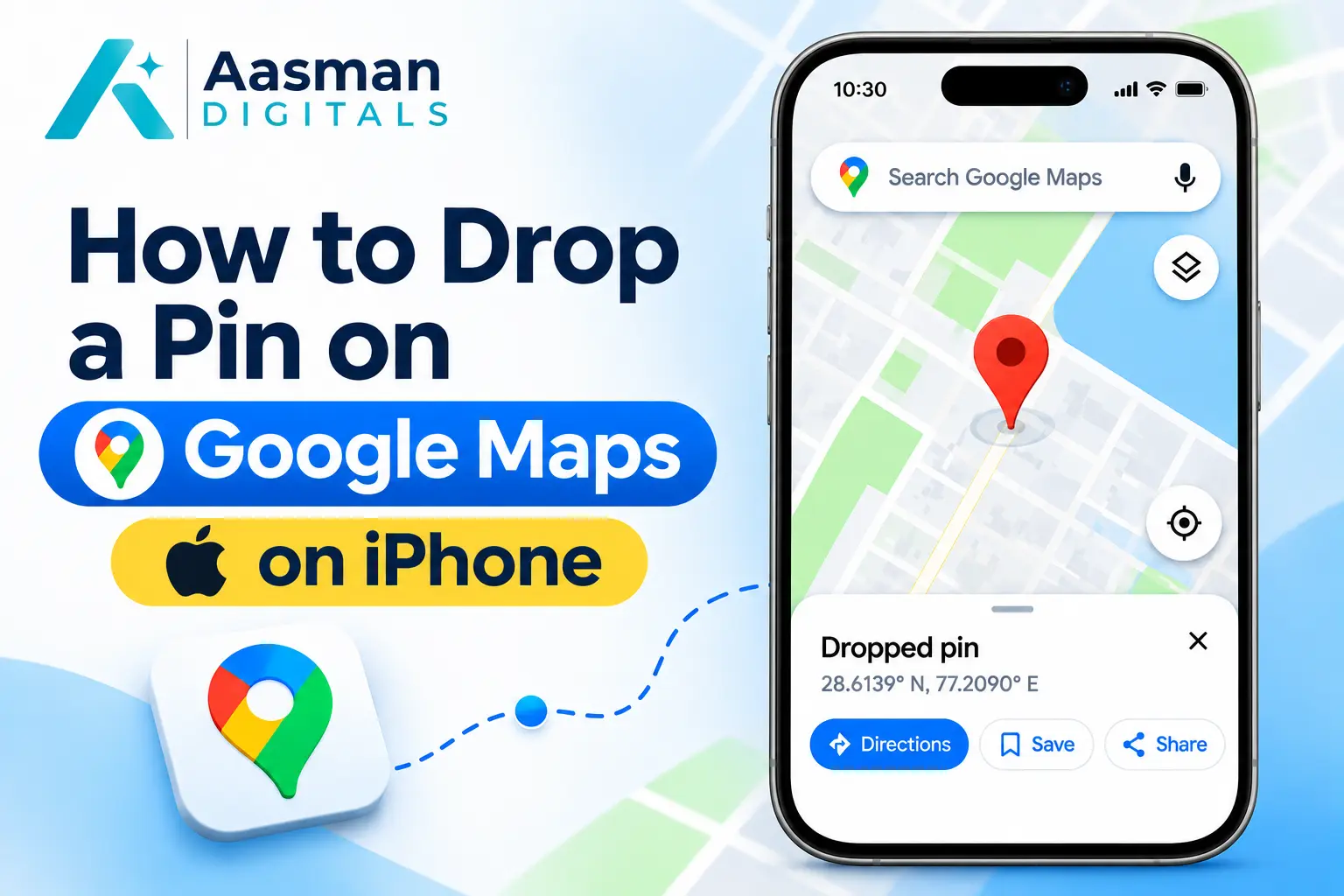
The Google Maps app works in a similar way on iPhones. You can mark places and send their locations to other people.
Step 1: Open the Google Maps App
Launch Google Maps on your iPhone. If the app is not installed, download it from the App Store.
Step 2: Search for Your Destination
Use the search bar to find a nearby landmark or address. Move the map and zoom in if you need a more precise spot.
Step 3: Touch and Hold the Map
Press and hold an unlabeled point on the map. A red location marker should appear.
Check the selected point before proceeding. If it is incorrect, clear the selection and try again.
Step 4: Choose an Action
Open the location details to view options such as Save, Share, and Directions.
You can send the selected location through Messages, WhatsApp, email, or another supported app.
Knowing how to drop a pin on Google Maps on your iPhone is useful when meeting someone or sharing a hard-to-find address.
How to Drop a Pin on Google Maps on a Computer
You can also mark locations from a Windows PC, Mac, or laptop. This is helpful when planning a trip or checking a location on a larger screen.
Step 1: Open Google Maps in Your Browser
VisitGoogle Maps using a browser such as Chrome, Edge, Firefox, or Safari.
Step 2: Find the Exact Place
Enter a location in the search bar. You can also drag the map and zoom in to find the required area.
Step 3: Click the Location
Left-click an unlabeled spot on the map. Google Maps displays a small marker and a location card.
Click the coordinates in the card to open more information about the selected point.
Step 4: Share or Save the Pin
Use the location details panel to save the place, copy a sharing link, or get directions.
Learning how to drop a pin on Google Maps on a desktop is especially helpful when checking several locations before a journey.
How to Save and Share a Dropped Pin
Placing a pin is only the first step. Google Maps also lets you keep important locations and send them to others.
Save a Location for Later
To save a location on Google Maps, select the dropped pin and open its details. Choose Save and select a list such as Favorites, Want to go, or another available list.
Sign in to your Google account if you want to access saved places across compatible devices.
Share a Google Maps Pin
To share a Google Maps pin, open the selected location and choose Share. You can copy the link or send it through a messaging app.
The recipient can open the link to view the selected location. This is useful for meeting points, delivery instructions, and places without clear addresses.
Get Directions to a Pinned Location
Select the pin and tap Directions. Choose your starting point and an available travel mode.
Check the suggested route before traveling. A pin may mark a point that is not directly accessible by road, so the final approach may need extra care.
How to Find GPS Coordinates Using Google Maps
Every location has geographic coordinates made up of latitude and longitude. These numbers identify a specific point on Earth.
On Android or iPhone, touch and hold an unlabeled area to place a pin. Open the location information to find the coordinates.
On a computer, right-click the required spot. The coordinates appear in the menu, and you can click them to copy the numbers.
GPS coordinates help when sharing remote places or locations that have no formal address.
How to Remove a Dropped Pin on Google Maps
Sometimes you may place a pin in the wrong spot or no longer need it.
To remove a dropped pin on Android or iPhone, clear the current selection using the search bar or return to the main map. You can then select another location.
On a computer, close the location card or click a different area of the map to clear or replace the temporary marker.
Remove a Saved Location
Removing a temporary pin is different from deleting a saved place.
To remove a saved location:
- Open Google Maps and go to your saved places.
- Find the list containing the location.
- Open the saved place.
- Remove it from the selected list.
If you saved the same place in several lists, check each list separately.
Why Can't You Drop a Pin on Google Maps?
If you cannot place a pin, the issue may involve the app, your internet connection, or the selected location.
Check Your Internet Connection
A weak connection can prevent the map from loading properly. Try connecting to a stable network before selecting the location again.
Update Google Maps
Older app versions may have display or performance issues. Check the Play Store or App Store for available updates.
Select an Unlabeled Area
If you press an existing business marker, Google Maps may open that business listing instead of creating a dropped pin.
Zoom in and touch an empty part of the map to select a precise point.
Restart the App
Close Google Maps and reopen it if the screen stops responding. You can also restart your device if the problem continues.
These checks may help when learning how to drop a pin on Google Maps and the marker does not appear as expected.
How Google Maps Helps Local Businesses
Google Maps is not only useful for finding directions. It also helps customers locate nearby businesses, check opening hours, and contact service providers.
However, dropping a pin does not create or optimize an official business listing. Businesses need a properly managed Google Business Profile for their public location information.
Keep Your Business Information Accurate
Use the correct business name, address, phone number, and opening hours. Update these details whenever something changes.
Accurate information helps customers know where your business is and when they can visit.
Maintain Your Google Business Profile
A complete Google Business Profile can show customers useful details about your company. Add relevant categories, services, photos, and other available information.
Google states that local rankings depend mainly on relevance, distance, and prominence. A complete profile can help Google understand your business, but no specific ranking is guaranteed.
Use Local SEO to Support Visibility
Google Maps for business works alongside local search engine optimization. A helpful website, accurate business information, and genuine customer reviews can support your local search presence.
Businesses should also keep their contact information consistent across their website and relevant directories.
Work With Aasman Digitals
At Aasman Digitals, we help businesses improve their online presence through SEO and digital marketing services.
Our local SEO approach focuses on business profile improvements, location-based keywords, website optimization, and performance reviews. The goal is to help nearby customers find relevant business information more easily.
FAQs About Dropping Pins on Google Maps
1. Can I drop multiple pins on Google Maps?
You can save several locations to different lists. If you need a custom map with multiple markers displayed together, Google My Maps may be a better option.
2. Can I share a dropped pin without an address?
Yes. You can send a location link even when the selected place has no formal street address. Google Maps uses the map location to identify the spot.
3. Does a dropped pin show my live location?
No. A dropped pin marks a selected point. Sharing it does not automatically give someone access to your changing live location.
4. Can I change the name of a dropped pin?
You can add a personal label to certain locations in Google Maps. Label options may vary based on the device, account, and location type.
5. How accurate is a Google Maps pin?
The pin identifies the point you select on the map. Its usefulness depends on how carefully you place it and how accurate the underlying map information is.
Make Locations Easier to Find with Google Maps
Learning how to drop a pin on Google Maps makes it easier to share meeting points, save useful places, and plan routes. Whether you use Android, iPhone, or a computer, you can mark a location in a few simple steps.
For business owners, accurate map information is also important. A complete Google Business Profile and a strong local SEO strategy can help customers find your business when searching nearby.
Want More Local Customers to Find Your Business on Google Maps?
Aasman Digitals can help you improve your Google Business Profile, strengthen local SEO, and make your business easier to find in relevant searches.
Contact Aasman Digitals Today to Improve Your Google Maps Visibility and Reach More Local Customers.